Why Does The Whatsapp Web QR Code Error Occur?
If you are dealing with a WhatsApp Web QR code error, you are not alone. Many users experience difficulties when trying to connect their phones to WhatsApp Web, even though the QR code appears correctly on the computer screen. In some cases, the phone camera refuses to recognize the code, while in others the scan succeeds but the connection never completes. These problems can be frustrating, especially for people who rely on WhatsApp Web for work or daily communication.
The good news is that most QR code scanning issues are not caused by permanent hardware failures. Instead, they usually result from software settings, outdated applications, unstable internet connections, incorrect permissions, or temporary synchronization problems between the mobile app and WhatsApp's servers. Understanding the possible causes makes it much easier to identify the right solution without wasting time on unnecessary troubleshooting.
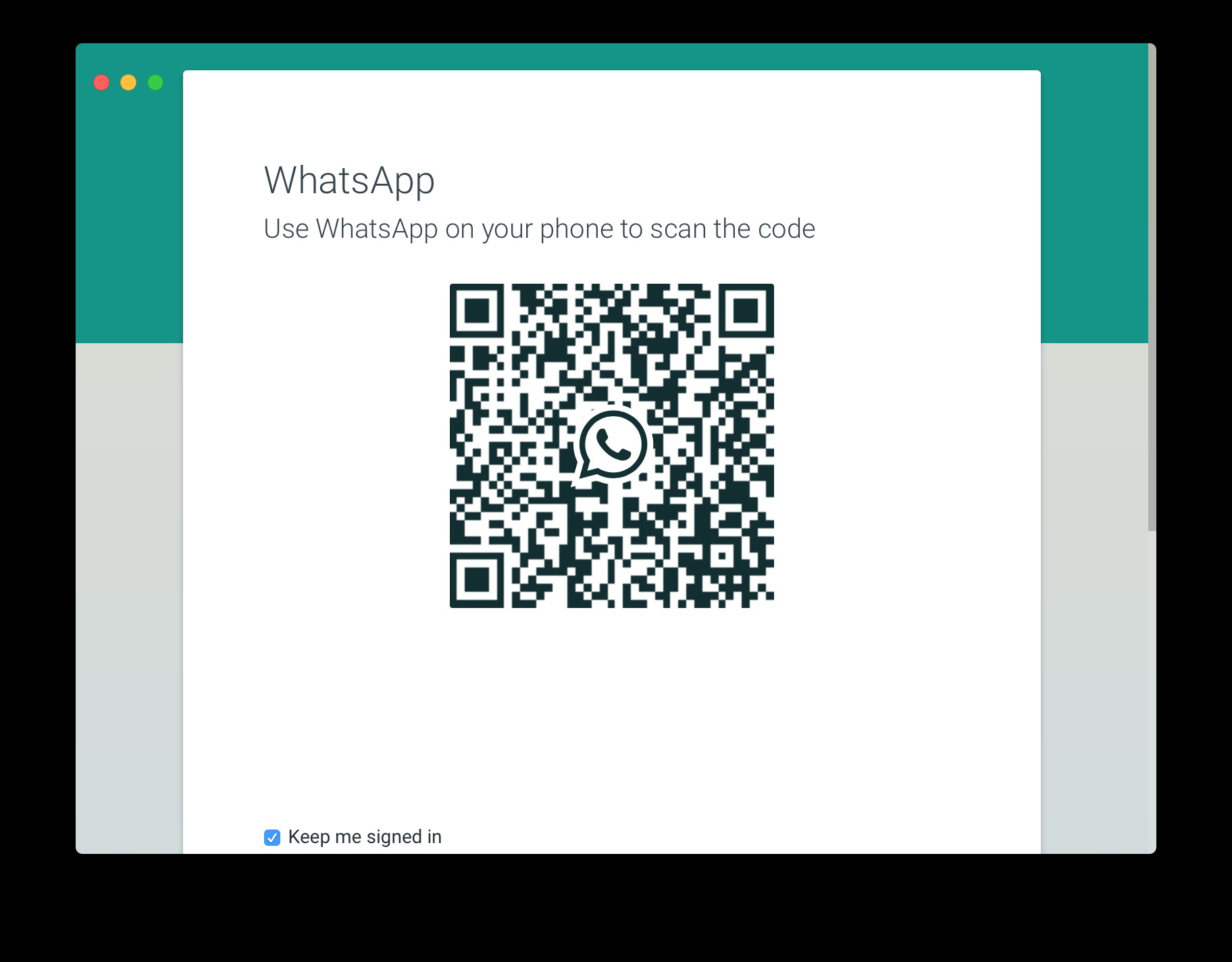
Why WhatsApp Web Uses QR Codes
WhatsApp Web is designed to
securely mirror conversations from your mobile device to your desktop browser.
Instead of requiring a traditional username and password, WhatsApp
authenticates the connection through a unique QR code.
When you scan the code using your
phone, the app creates an encrypted session between both devices. Every
conversation remains protected through end-to-end encryption, ensuring that
only the intended participants can read messages.
Because this authentication
process depends on multiple technologies working together, even a small
interruption can prevent the login from succeeding.
Common Reasons Behind a WhatsApp Web QR code error
Several different issues can
prevent the QR code from being scanned correctly. While some are obvious,
others remain hidden until users inspect their device settings more carefully.
The most common causes include:
- Camera permission restrictions
- Dirty or damaged camera lenses
- Weak or unstable internet connections
- Browser compatibility problems
- Corrupted application cache
- Outdated WhatsApp versions
- VPN or firewall interference
- Operating system bugs
- Expired QR codes
Sometimes multiple problems occur
simultaneously, making diagnosis slightly more complicated.
Camera Permission Problems
One of the simplest explanations
is that WhatsApp no longer has permission to access the phone's camera.
Modern versions of Android and
iOS allow users to control hardware access on an application-by-application
basis. During software updates or privacy changes, camera permissions may be
automatically disabled without the user realizing it.
To verify camera access:
- Open your phone's Settings.
- Navigate to Apps or Applications.
- Select WhatsApp.
- Open Permissions.
- Confirm that Camera access is enabled.
If permission has been denied, simply allowing access often resolves the problem immediately.

Dirty Camera Lens and Focus Issues
Not every QR scanning problem is
software-related.
A fingerprint, dust particles, or
even pocket lint on the camera lens can reduce image sharpness enough to
prevent QR recognition.
Because QR codes rely on precise
square patterns, even slight blurring may stop the camera from decoding the
image correctly.
Cleaning the lens with a soft
microfiber cloth can significantly improve scanning performance.
Likewise, holding the phone too
close or too far away from the monitor may prevent autofocus from locking onto
the QR code.
Poor Lighting Conditions
Lighting plays a surprisingly
important role.
Bright reflections on the
computer monitor or extremely dim environments reduce the contrast between the
black and white QR code blocks.
If possible:
- Increase room lighting.
- Lower monitor brightness slightly.
- Avoid direct sunlight reflecting off the display.
- Position the phone at a comfortable angle.
Improved visibility often allows
the camera to recognize the QR code almost instantly.
Internet Connectivity Can Interrupt Authentication
Even after the QR code is scanned
successfully, WhatsApp still needs to verify the connection with its servers.
If either device experiences:
- unstable Wi-Fi,
- intermittent packet loss,
- mobile data interruptions,
- slow DNS resolution,
the authentication process may
fail before completion.
Restarting the router, switching
between Wi-Fi and mobile data, or briefly enabling Airplane Mode can refresh
network connectivity.
Many users resolve a WhatsApp Web QR code error simply by reconnecting to a stronger network.
Outdated WhatsApp Versions
Running an older version of
WhatsApp increases the likelihood of compatibility problems.
WhatsApp frequently introduces
security improvements, protocol updates, and bug fixes. Older versions may not
fully support newer authentication methods used by WhatsApp Web.
Visit Google Play Store or
Apple's App Store and install the latest available update before attempting
another login.
Keeping both the operating system
and WhatsApp updated reduces many unexpected issues.
Browser-Related Problems
The problem may not always
originate from the phone.
Your desktop browser can also
interfere with WhatsApp Web if:
- cookies become corrupted,
- browser cache stores outdated files,
- browser extensions modify website behavior,
- JavaScript is blocked,
- security software interrupts page loading.
Refreshing the page usually
generates a brand-new QR code.
If problems continue, try:
- clearing browser cache,
- deleting cookies,
- opening WhatsApp Web in Incognito Mode,
- testing another browser like Chrome, Firefox, Edge,
or Safari.
These simple steps frequently
eliminate browser-specific conflicts.
VPN and Security Software Interference
Many organizations use VPN
connections or network filtering systems for security.
While useful, these services
occasionally interfere with WhatsApp's authentication servers by altering
traffic routes or blocking encrypted connections.
If you're connected to a VPN, disconnect temporarily and attempt the login again.
Similarly, firewall software or
antivirus programs with web filtering features may interrupt the communication
required to complete authentication.
Cache Corruption Can Cause Unexpected Errors
Applications continuously
generate temporary files to improve performance.
Over time, these cached files may
become corrupted.
When this happens, WhatsApp may
experience unusual behavior during QR code scanning or account synchronization.
Android users can clear cache
directly from:
Settings → Apps → WhatsApp →
Storage → Clear Cache
iPhone users cannot manually
clear application cache, but restarting the device or reinstalling WhatsApp
often produces similar results.
QR Codes Eventually Expire
Each QR code displayed on
WhatsApp Web has a limited lifespan.
If the code remains on the screen
too long before scanning, it automatically expires for security reasons.
Fortunately, this issue is easy
to solve.
Simply refresh the webpage to
generate a new QR code and scan it immediately.
An expired code is another common
cause of a WhatsApp Web QR code error, especially when users become
distracted during the login process.
Restart Both Devices
Sometimes the simplest solution
is the most effective.
Restarting both the smartphone
and computer clears temporary memory, closes frozen background processes, and
restores fresh network connections.
This process also eliminates
minor software glitches that accumulate during long device uptime.
After restarting:
- reconnect to Wi-Fi,
- open WhatsApp,
- visit WhatsApp Web,
- scan the newly generated QR code.
Many temporary authentication
problems disappear after a clean reboot.
When Hardware Is Actually the Problem
If your phone camera fails in
every application—not only WhatsApp—the issue may be hardware-related.
Possible causes include:
- damaged camera sensors,
- loose internal connectors,
- autofocus failures,
- physical impact damage,
- moisture exposure.
Testing the camera using the
default Camera application can help determine whether the problem is limited to
WhatsApp or affects the entire device.
If photographs appear blurry or
the camera refuses to open altogether, professional repair may be necessary.
Reinstalling WhatsApp
If none of the previous methods
solve the issue, reinstalling WhatsApp can reset corrupted internal files.
Before removing the application,
always create a chat backup using Google Drive or iCloud.
After reinstalling:
- restore your backup,
- verify your phone number,
- update the application,
- attempt a fresh WhatsApp Web login.
A clean installation often
resolves persistent authentication issues that ordinary troubleshooting cannot
fix.
Tips to Prevent Future QR Code Errors
Although technical issues cannot
always be avoided, a few good habits significantly reduce the chances of
experiencing another WhatsApp Web QR code error.
Consider following these
recommendations:
- Keep WhatsApp updated.
- Update your phone's operating system regularly.
- Clean the camera lens periodically.
- Maintain a stable internet connection.
- Avoid unnecessary VPN usage during login.
- Refresh expired QR codes promptly.
- Restart devices occasionally.
- Clear browser cache every few weeks.
Routine maintenance keeps both
the mobile app and browser operating more reliably.
A WhatsApp Web QR code error
rarely indicates a serious problem. In most situations, the issue is caused by
software settings, network interruptions, browser conflicts, expired
authentication codes, or missing camera permissions rather than permanent
hardware failure.
By systematically checking camera
access, ensuring adequate lighting, updating WhatsApp, refreshing internet
connectivity, clearing cached data, and generating a fresh QR code, most users
can restore access within just a few minutes.
If every troubleshooting step has
been completed and the camera still cannot scan any QR code, the underlying
cause may involve hardware damage or a deeper operating system issue. In those
cases, contacting your device manufacturer or WhatsApp Support is the most
appropriate next step.