How To Turn Off X Sensitive Content Alert?

While scrolling through X, you may sometimes encounter photos or videos hidden behind a warning instead of seeing the media immediately. X uses these warnings for content that may be considered sensitive, allowing users to decide whether they want to view such media based on their account preferences and applicable restrictions.
This can be confusing,
particularly when you know that a particular post contains an image or video
but cannot access it without first interacting with a warning screen.
Fortunately, X provides settings that allow eligible users to control how
sensitive media is displayed.
However, there is an important
detail to understand. The setting that controls sensitive media in your
timeline is separate from the filter used for sensitive content in search
results. Changing one option does not necessarily change the other.
How Can You Change Sensitive Content Settings On X?
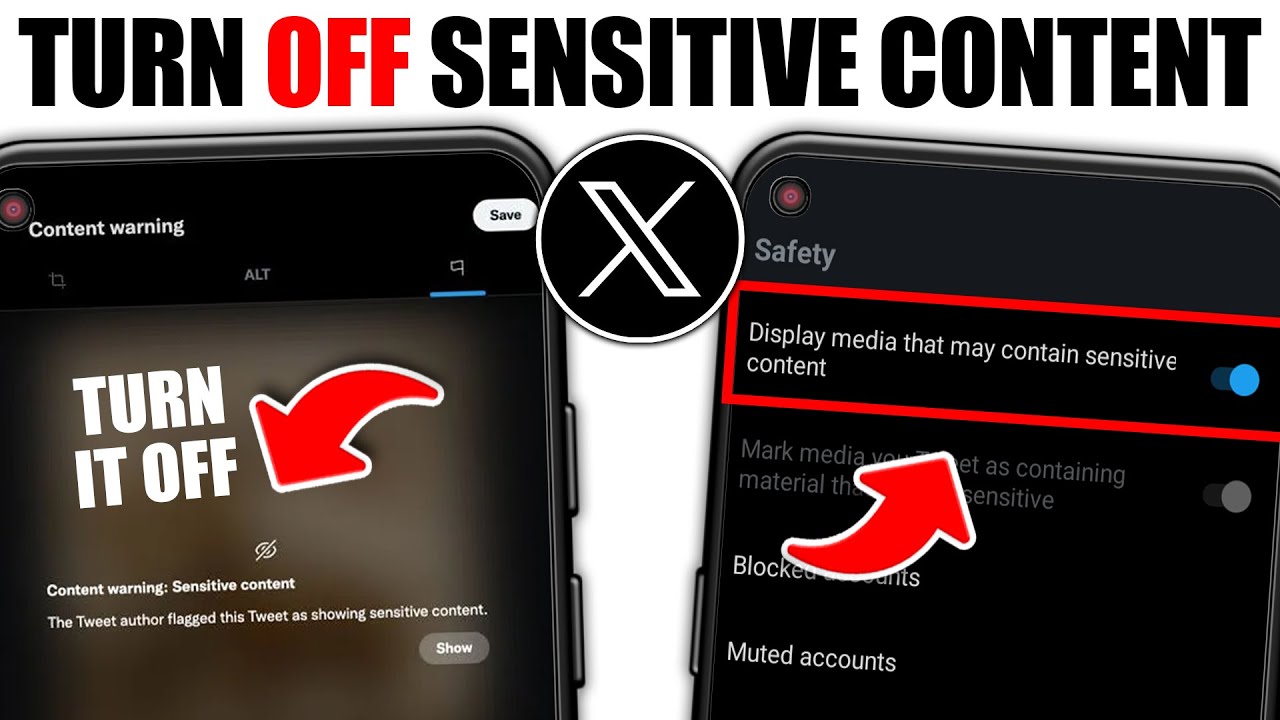
X includes a privacy setting that
controls whether media potentially containing sensitive material can be
displayed. If this option is enabled, eligible sensitive photos and videos can
appear without the same level of warning in your timeline.
To find this setting, open X and
sign in to your account. Then navigate through the privacy settings until you
reach the content preferences section.
The menu names may vary slightly
depending on the version of X you are using, but the general path is:
- Open X and log in to your account.
- Open your profile or account menu.
- Select Settings and privacy.
- Go to Privacy and safety.
- Open the section related to content you see.
- Find the option for displaying media that may
contain sensitive content.
- Enable the relevant setting.
The wording of this option can be
misleading. You are not necessarily looking for a button literally called
"turn off sensitive content warning." Instead, you are telling X that
you want to be able to view media that may contain sensitive material.
After changing the preference,
return to your timeline and refresh it. If the change does not appear
immediately, closing and reopening the application may help.
Can You Turn Off The Warning On An iPhone?
iPhone users may notice that the
sensitive media option is not always visible inside the X application. This can
make it seem as though the feature has been removed, but some account-level
content preferences may instead need to be accessed through X's website.
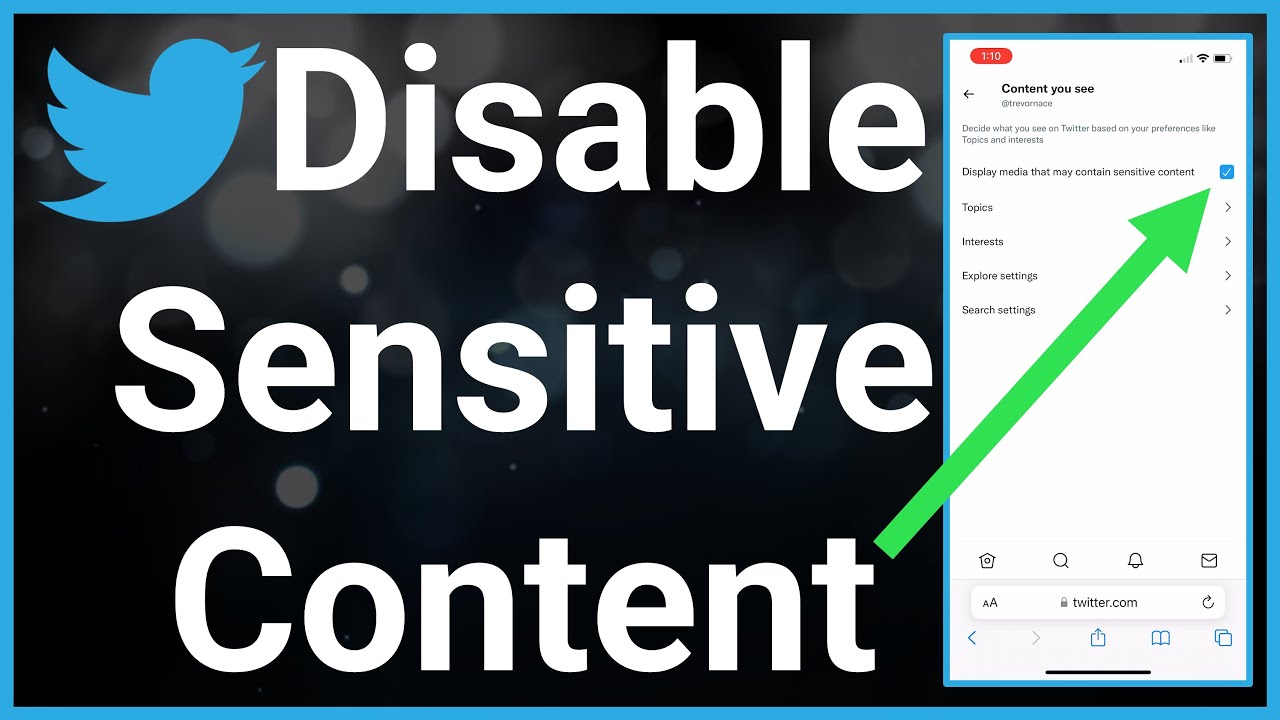
If you cannot find the setting in
the iOS application, open Safari or another browser and sign in to X. From
there, navigate to Settings and privacy, followed by Privacy and safety and the
section containing your content preferences.
Look for the option that allows
potentially sensitive media to be displayed and enable it if it is available
for your account.
This is different from the
settings found under the iPhone's general Settings application. The sensitive
media preference belongs to your X account rather than being a standard iOS
permission such as access to photos, notifications or location.
Once you have changed the setting
through the web interface, return to the X application. Refresh the timeline or
restart the application if necessary.
How Do You Disable Sensitive Content In X Search?
Changing the media preference
does not automatically mean that sensitive posts will appear in every X search.
Search results have their own content filtering mechanism, which is why users
sometimes continue to see fewer results than expected.
If your timeline displays
sensitive media but certain posts do not appear when you search for them, check
the search-related content filter.
Go to your X privacy and safety
settings and open the content preferences area. From there, look for the search
settings. Depending on the current interface, you may find an option that hides
sensitive content from search results.
If that filter is enabled,
sensitive posts can remain excluded from searches even if you have already
allowed sensitive media to appear in your timeline.
This distinction is especially important when troubleshooting the issue. Turn off X sensitive content alert may involve changing one setting for your timeline while adjusting another preference for search results.
Why Is The Sensitive Content Option Missing?
There are several reasons why you
might not see the expected setting in your account.
First, check which platform you
are using. Some options may be easier to find through the web version of X,
especially when using an iPhone.
Your account information can also
affect access to certain types of content. X may apply additional restrictions
based on age-related information. Accounts that are identified as belonging to
users below the applicable age threshold, or accounts where age information
cannot be adequately established, may have limitations concerning sensitive
media.
The application version can also
affect how menus are presented. If the setting seems to be missing, check
whether an update is available for the X application.
You should also make sure that
you are changing the preference on the correct account. If you regularly switch
between multiple X profiles, a setting changed on one account does not
automatically apply to another.
What Should You Do If The Warning Still Appears?
If you have changed your content
preferences but continue to see warnings, start by checking whether the setting
is still enabled. Open your privacy and safety settings again and confirm that
the relevant media option has been saved.
If the problem occurs only when
searching, inspect the search filter separately. The timeline and search system
can apply different content preferences, so changing the timeline setting alone
may not resolve the issue.
You can also try accessing your
account through X's web version if the application does not display the
expected option. Updating the application and restarting it can also help when
the interface has not immediately reflected a changed preference.
Turn off X sensitive content
alert is therefore not always a matter of changing a single button. The
location of the warning and the type of content being blocked can determine
which setting needs to be adjusted.
Can Every X Sensitive Content Warning Be Removed?
No. Changing the sensitive media
preference does not override every restriction that X may place on a post or
account.
Some warnings can be connected to age-related limitations, account restrictions, privacy settings, platform rules or the availability of the original post. In these situations, enabling the sensitive media preference will not necessarily make the content accessible.
For this reason, it is useful to
identify exactly where the warning appears. If it appears while browsing your
timeline, start with the media display preference. If content is missing
specifically from search results, examine the search filter instead.
What Is The Easiest Way To Manage Sensitive Media?
The easiest approach is to treat
timeline media and search results as two separate settings. First, check
whether your account allows potentially sensitive media to be displayed. Then
review the search-related filter if the problem only occurs when using X's
search function.
If you use an iPhone and cannot
find the necessary option in the application, try accessing your account
through a web browser. Android users may see the relevant option directly
within the application, although the exact menu structure can change as X
updates its interface.
Ultimately, Turn off X
sensitive content alert requires understanding which content filter is
responsible for the warning. Once you identify whether the restriction affects
your timeline, search results or account access, finding the appropriate
setting becomes considerably easier.
Keep in mind that X can change
its menus and terminology over time. If the option appears under a slightly
different name, look for the settings related to Privacy and safety, content
preferences, sensitive media and search filters. These are the areas most
directly connected to how potentially sensitive content is displayed on the
platform.
By checking these settings
carefully, you can better understand why certain photos or videos are hidden
and which preferences control their visibility. Turn off X sensitive content
alert can be straightforward when the correct account setting is
identified, but some restrictions may remain in place when they are imposed for
reasons beyond the standard sensitive-media preference.