How to open two apps with a single touch?
Modern Samsung devices come with a variety of smart features designed to improve multitasking efficiency. One of the most useful among them is the ability to run two apps simultaneously with a single action. Known as one tap open two apps, this feature allows users to launch paired applications instantly, saving time and simplifying daily smartphone use.
Instead of opening apps one by one, users can create a
shortcut that launches two selected apps at the same time. This is especially
useful for people who frequently switch between the same two applications
during the day, such as navigation and music, messaging and browsing, or video
and note-taking apps.
What Does the Dual App Feature Do?
Samsung’s multitasking system is designed to make phone
usage more fluid. The main idea behind one tap open two apps is to
eliminate repetitive steps. Rather than manually opening each app separately,
the phone automatically launches both apps in a split-screen layout or
predefined configuration.
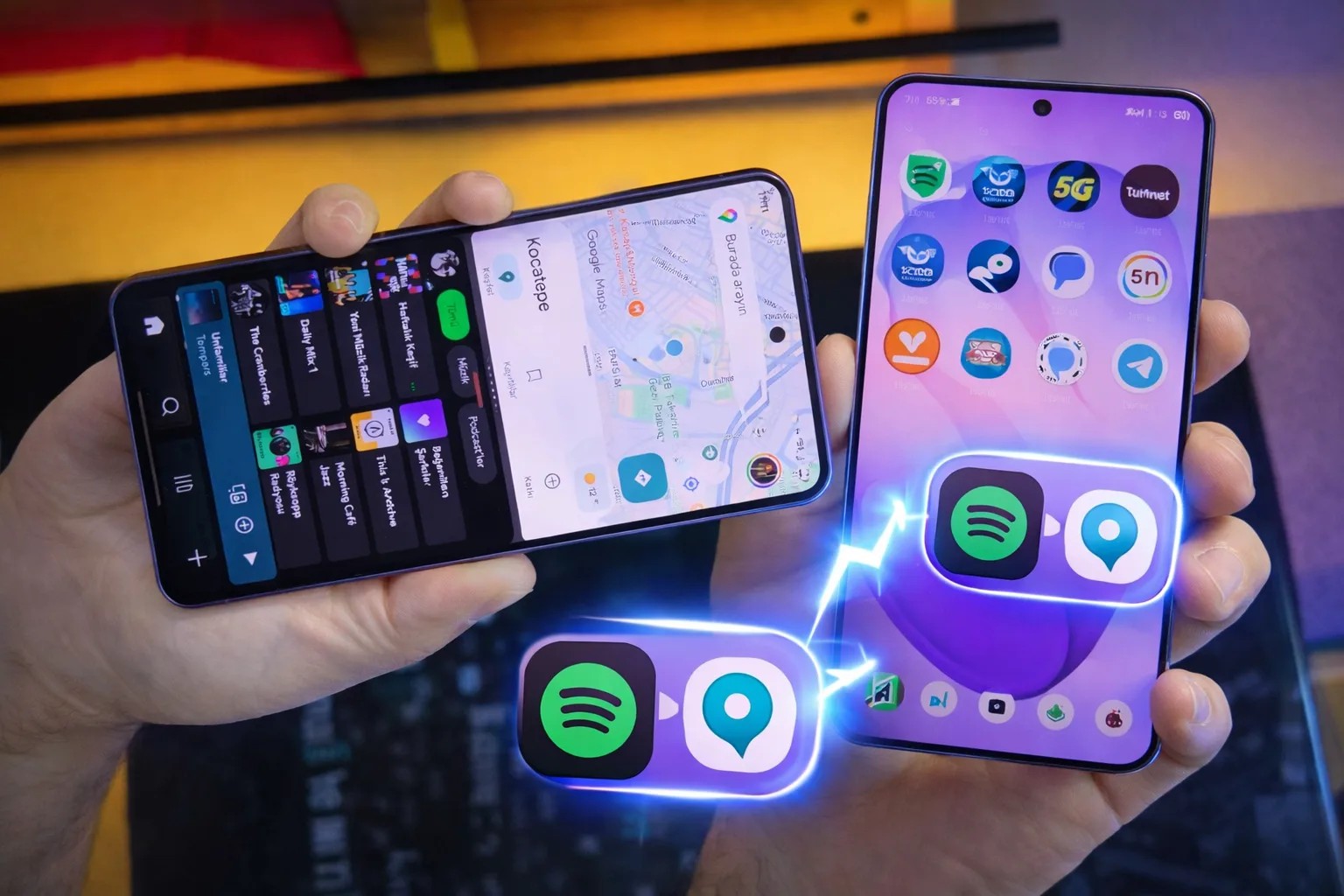
For example, a user traveling in a car might want to use a
map application while simultaneously listening to music. Normally, these apps
would need to be opened individually. However, with this feature, both apps
appear on the screen instantly in a pre-arranged format.
This not only saves time but also improves productivity,
especially for users who rely heavily on multitasking.
How to Open Two Apps at the Same Time on Samsung
Samsung’s interface allows users to manually activate
split-screen mode quite easily. First, you need to open one of the applications
you want to use. After that, you should access the recent apps menu.
Once inside the recent apps view, tap on the app icon
located at the top of the selected application window. From the options that
appear, choose “Open in Split Screen View.”
After selecting the first app, choose the second application you want to use. The screen will then be divided into two active windows, allowing both apps to run simultaneously.

At this stage, you can adjust the divider between the two
apps. This lets you decide how much space each app should occupy on the screen.
Some users prefer equal spacing, while others may want one app to take up more
space depending on their needs.
This manual method is the foundation of the one tap open
two apps experience, but Samsung goes further by allowing users to automate
the process.
Creating an App Pair Shortcut
One of the most powerful features of Samsung’s multitasking
system is the ability to create an app pair. Once you have set up two apps in
split-screen mode, you can save them as a shortcut.
To do this, return to the recent apps screen again. Tap the
app icon at the top once more and select the “Add App Pair” option. This will
generate a shortcut that instantly opens both selected apps together.
After creating the shortcut, you can place it on your home
screen or edge panel. This means that with just one tap, both applications will
launch simultaneously in the same layout you previously configured.
This is essentially what makes one tap open two apps
such a practical feature for everyday use.
Why App Pairing Is Useful
The app pairing system is particularly helpful for users who
rely on multitasking throughout the day. Instead of switching between apps
repeatedly, everything is available at once.
Common examples include:
- Using
navigation apps alongside music streaming platforms
- Watching
videos while taking notes
- Browsing
the internet while chatting with friends
- Reading
documents while using a calculator
In all these scenarios, having two apps open side by side
improves efficiency and reduces interruptions.
With the help of one tap open two apps, users can streamline their workflow and focus more on tasks instead of navigation between apps.
Step-by-Step Guide to Create App Pair
Setting up this feature is simple and does not require any
advanced technical knowledge. Here is a clear breakdown of the process:
- Open
the first application you want to use
- Go
to the recent apps screen
- Tap
the app icon at the top
- Select
“Open in Split Screen View”
- Choose
the second application
- Adjust
the screen layout as needed
- Tap
the app icon again
- Select
“Add App Pair”
- Save
the shortcut to your home screen or edge panel
Once completed, you will have a ready-to-use shortcut that
activates one tap open two apps instantly whenever you need it.
Everyday Benefits of App Pairing
The biggest advantage of this feature is convenience. Users
no longer need to manually open and arrange apps every time they multitask.
Instead, everything is prepared in advance.
This is especially beneficial for professionals, students,
and content creators who frequently use multiple apps at the same time. It also
helps reduce time wasted on switching between applications.
Another benefit is customization. Users can decide which
apps to pair and how they appear on the screen. This flexibility makes the
feature adaptable to different usage styles.
Performance and User Experience
Samsung’s One UI interface is optimized to handle
multitasking smoothly. Even when two apps are running simultaneously,
performance remains stable on most modern devices.
This ensures that one tap open two apps does not
negatively affect system speed or responsiveness. Instead, it enhances the
overall user experience by making multitasking feel natural and seamless.
Limitations to Consider
Although the feature is highly useful, it does have some
limitations. Not all apps support split-screen mode, and certain applications
may not function properly when paired.
Additionally, smaller screen devices may feel slightly
cramped when running two apps at once. In such cases, users may need to adjust
layout proportions carefully.
Despite these minor limitations, the feature remains one of the most practical tools for improving productivity on Samsung devices.
Samsung’s app pairing and split-screen capabilities are
designed to make smartphone usage more efficient and user-friendly. By using one
tap open two apps, users can significantly reduce the time spent switching
between applications.
Whether for work, entertainment, or daily tasks, this
feature provides a smooth and organized multitasking experience. With a simple
setup process and instant access through shortcuts, it has become an essential
tool for many Samsung users.