LinkedIn Premium provides users with additional tools designed for professional networking, job searching, profile visibility and career development. However, if you no longer need these features, you do not have to delete your LinkedIn account. You can simply stop the Premium subscription and continue using LinkedIn with its free account features.
The cancellation process depends
mainly on where the subscription was purchased. A Premium plan started directly
through LinkedIn is managed differently from a subscription billed through
Apple's App Store or Google Play. Knowing where the payment is processed can
therefore save you time and prevent confusion.
The Canceling LinkedIn
Premium process usually takes only a few minutes when you access the
correct subscription management page. However, deleting the LinkedIn
application or signing out of your account does not automatically stop
recurring payments.
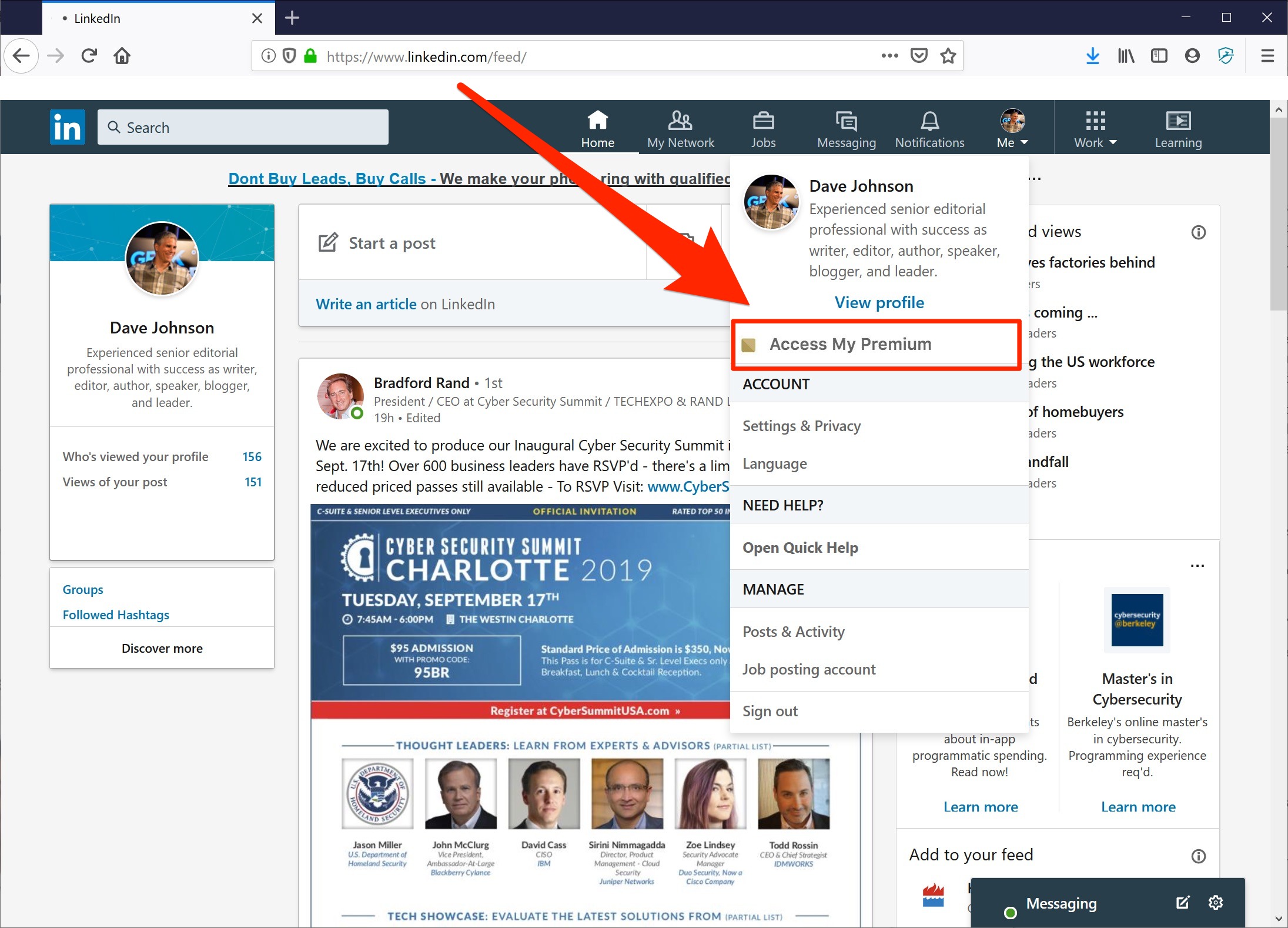
If you purchased LinkedIn Premium
directly from LinkedIn, you can generally manage the subscription through your
account settings. Sign in to LinkedIn using a browser and open the section
associated with your profile and Premium account.
Look for the area where your
Premium subscription, billing information or plan details are managed. From
there, select the option related to managing or canceling your subscription.
LinkedIn may display information about the Premium benefits you will lose and
ask you to confirm your decision.
Once you complete the required
confirmation steps, automatic renewal should be stopped according to the
subscription status shown in your account. It is a good idea to check the
displayed renewal or expiration date afterward so you can confirm that the cancellation
was successfully registered.
LinkedIn can change its interface
and menu names over time, so the exact wording may differ from what you see in
an older guide. The important point is to locate the section responsible for
managing your Premium plan and billing details.
If you subscribed to LinkedIn
Premium through Apple's App Store, the subscription is generally managed
through your Apple account rather than directly through LinkedIn. In this
situation, opening LinkedIn's billing settings may not give you the option to
cancel the plan.
On your iPhone, open the Settings
application and tap your name at the top of the screen. Then select the
subscriptions section and look for LinkedIn among your active or inactive
subscriptions.
After opening the LinkedIn
subscription, you can review its status and available cancellation options.
Complete the confirmation process and check the expiration or renewal
information displayed afterward.
The Canceling LinkedIn Premium process
on an iPhone does not require you to remove the LinkedIn application. Deleting
the app only removes the software from your device; it does not necessarily
cancel an active subscription.
If LinkedIn does not appear in your Apple subscriptions, check whether you are signed in with the Apple account that was originally used for the purchase. The subscription may also have been purchased directly through LinkedIn.
Android users who purchased
Premium through Google Play should manage the subscription through their Google
account. Open the Google Play Store and access the profile menu. From there,
navigate to the payments and subscriptions area and open the subscriptions
section.
If LinkedIn appears in your
active subscriptions, select it and follow the cancellation instructions
displayed on the screen. After completing the process, review the subscription
status to make sure automatic renewal has been disabled.
If you cannot find LinkedIn in
the subscription list, check whether another Google account is being used on
your phone. This is particularly important if you have multiple Google accounts
signed in to the same device.
For a subscription purchased
directly through LinkedIn, Google Play is not necessarily involved. In that
case, you should return to LinkedIn's own Premium management area.
The Canceling LinkedIn
Premium procedure on Android is therefore determined by the original
payment method, rather than simply by the type of phone you use.
Before completing the
cancellation, it is useful to review your subscription information. This can
help you understand when your current billing period ends and whether Premium
access will remain available until that date.
Consider checking the following
details before confirming the cancellation:
Taking a moment to check these
details can help prevent confusion, particularly when a subscription was
started several months ago or through a different device.
Canceling Premium does not mean
that your LinkedIn account will be deleted. Your profile, connections, posts
and other account information can remain available under the free version of
LinkedIn.
In many cases, canceling a paid
subscription stops future automatic renewal while allowing access to Premium
features until the end of the current billing period. The exact timing should
be confirmed through the subscription information shown in your account or the
platform that processes your payment.
After the Premium period ends,
features that are exclusive to the paid plan may no longer be available. Your account
can continue to operate with LinkedIn's standard features.
This distinction is important
because some users mistakenly believe that canceling Premium means they must
close their entire LinkedIn account. These are separate actions.
A LinkedIn Premium free trial may
automatically convert into a paid subscription if it is not canceled before the
applicable renewal date. For this reason, users who do not intend to continue
with Premium should review the trial terms and renewal information.
If the trial was started directly
through LinkedIn, use the Premium subscription management area associated with
your account. If it was started through Apple or Google, use the relevant
subscription management system instead.
The Canceling LinkedIn
Premium process for a free trial follows the same basic principle:
identify where the subscription was created and cancel it through that
platform.
It is advisable not to wait until the final hours of a trial. Check the renewal date shown in the account and complete the cancellation beforehand when possible. Afterward, verify the subscription status to ensure the request was successfully processed.
Yes. Canceling Premium does not
prevent you from continuing to use LinkedIn. Once your paid or trial period
ends, your account can generally remain active under the free plan.
Your professional profile and
existing connections are not automatically removed simply because Premium has
been canceled. You can continue networking, viewing profiles and using the
standard tools available to free LinkedIn members.
If you later decide that you need
Premium features again, you can review the plans available at that time and
subscribe again if you choose.
The Canceling LinkedIn
Premium process is therefore primarily about stopping the paid
subscription rather than ending your relationship with LinkedIn altogether.
The most important step is to determine
where your Premium subscription is billed. If you purchased it directly through
LinkedIn, manage it through LinkedIn. If Apple or Google processed the
purchase, use the corresponding subscription settings.
Do not rely on deleting the app
or signing out of your account to stop payments. Always look for an explicit
cancellation confirmation and check the renewal date afterward.
By following these steps, you can
complete Canceling LinkedIn Premium without deleting your
professional profile or losing your existing LinkedIn account. The key is to
use the correct subscription platform, confirm the cancellation and keep track
of when your current Premium access ends.