A successful Discord community depends heavily on how well its management structure is organized. One of the most important parts of maintaining order is creating a clear permission system. Discord server role assignment is not only about giving users different colors next to their names; it is also a powerful way to control access levels, organize responsibilities, and maintain security within a community.
Whether you manage a gaming
community, a professional workspace, or a large social group, properly
configured roles help prevent confusion and make moderation much easier.
Assigning specific roles such as Administrator, Moderator, Support Team, and
Member allows each user to have only the permissions they actually need.
Discord roles work as a
permission-based management system. Each role can a proper role system, even a
small Discord server can quickly become difficult to manage. Too many users
with unnecessary permissions can create security risks, while insufficient
permissions can slow include different abilities, such as managing messages,
banning users, creating channels, or viewing private sections of a server.
A well-designed role structure
provides several advantages:
Without a proper role system, even a small Discord server can quickly become difficult to manage. Too many users with unnecessary permissions can create security risks, while insufficient permissions can slow down moderation tasks.
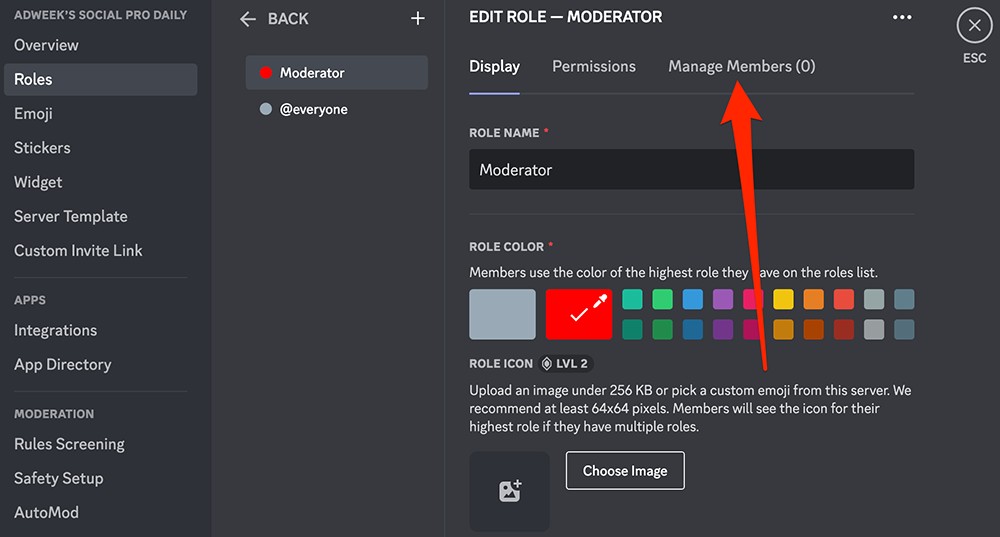
Before assigning roles to
members, the first step is creating and adjusting the roles correctly. The most
important point during this stage is determining which permissions each role
should have.
A role with excessive permissions
can create serious problems. For example, giving every moderator
administrator-level access may allow accidental or unauthorized changes to
important server settings.
To create a new role, follow
these steps:
First, open your Discord server
and click the server name located at the top-left corner. From the dropdown
menu, select Server Settings.
Inside the settings menu, you will find the section where all role-related management options are located.
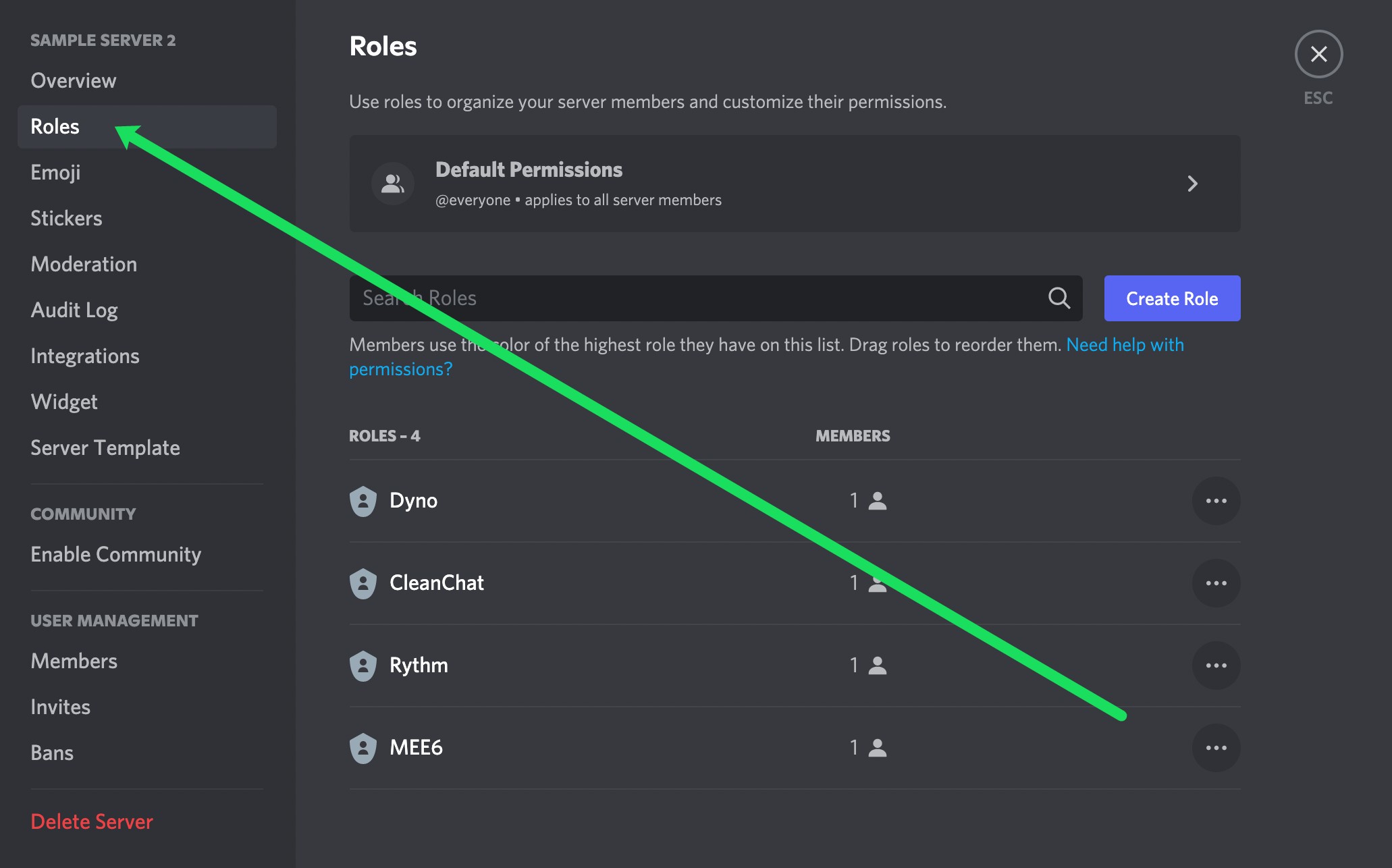
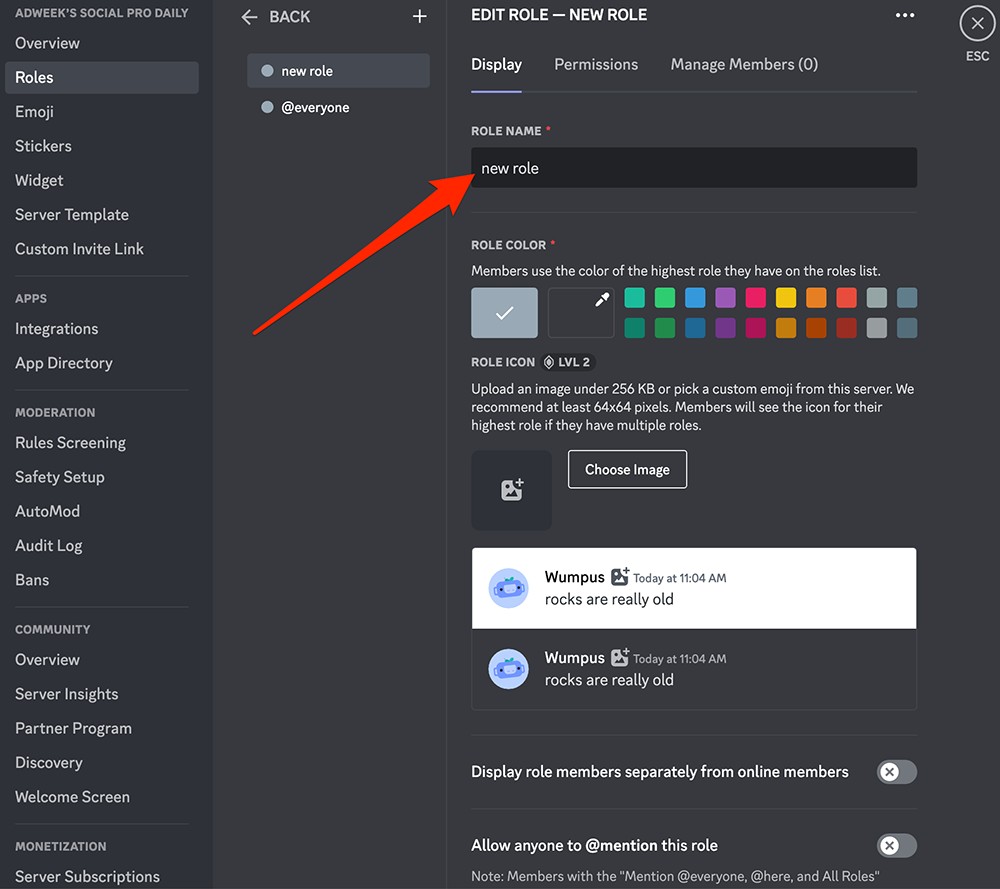
Navigate to the Roles
section and click the option to create a new role.
At this stage, you can customize
several details:
Choosing unique colors for different
roles helps members quickly identify staff members or special groups.
After creating the role, move to
the permissions section. Here you can decide what actions the role can perform.
For example:
A balanced permission structure
is essential for maintaining server security.
Discord roles do not work
randomly. They follow a ranking system where higher roles have more authority
than lower roles.
The role located at the top of
the list has greater control over roles positioned below it. Because of this,
the hierarchy must be arranged carefully.
When organizing roles, place the
most powerful roles at the top:
A user cannot manage another role
that is positioned above their highest role. This security system prevents
moderators or lower-level users from gaining control over administrators.
A strong hierarchy is one of the most important parts of Discord server role assignment because it determines who can manage permissions and who cannot.
Once roles have been created and
configured, the next step is giving them to users. Discord provides simple
options for both desktop and mobile users.
The process is quick, but you
must have the required permissions before making changes.
If you are using Discord on a
computer, follow these steps:
Look at the right side of your
server interface where all online and offline members are displayed.
Right-click the member who should
receive a role.
A menu will appear with several
management options.
Click the Manage Roles
option. A list of available roles will appear.
Select the appropriate role and
close the menu. The changes will automatically apply.
This method makes Discord
server role assignment simple, especially for communities with many
members.
The mobile Discord application
also supports role management, although the interface is slightly different.
Follow these steps:
The updated permissions become
active immediately after saving.
Although role management is
straightforward, users may encounter several issues during the process.
The most common problem is the
“Missing Permissions” error.
This usually happens because of
Discord’s hierarchy system. If your current role is lower than the role you
want to assign or modify, Discord will block the action.
Make sure your highest role is
placed above the role you are trying to manage.
If necessary, ask the server
owner or a higher-level administrator to adjust the hierarchy.
Go to:
Server Settings → Roles →
Permissions
Check whether your account has
the Manage Roles permission enabled.
Without this permission, you
cannot assign roles to other members.
Sometimes interface problems may
prevent changes from appearing immediately.
You can refresh Discord by
restarting the application or using the refresh shortcut on desktop versions.
A professional Discord server
should avoid creating unnecessary roles. Too many roles can make the system
complicated and difficult to maintain.
Instead, create roles based on
actual needs.
For example:
Another important practice is
regularly reviewing permissions. As your community grows, some roles may become
outdated or require adjustments.
A well-organized role structure
protects your Discord community from accidental mistakes and potential abuse.
Administrators should follow the
principle of giving users only the permissions they require. A moderator who
only handles messages does not need access to server ownership settings.
Careful permission planning
reduces risks and creates a safer environment for everyone.
The correct use of Discord
server role assignment helps communities operate smoothly while keeping
management tasks organized.
Discord roles are much more than
simple labels displayed beside usernames. They are a complete management system
that determines how users interact with your server.
By creating structured roles,
adjusting permissions correctly, and maintaining a clear hierarchy, you can
build a more secure and professional Discord community.
Proper Discord server role
assignment allows administrators to control access effectively, reduce
confusion, and provide members with a better experience. Whether you manage a
small friend group or a large online community, a strong role system is one of
the foundations of successful Discord management.