How Does ChatGPT Google Calendar Integration Work?
If your day is filled with meetings, appointments, reminders, and other scheduled events, constantly opening Google Calendar can become inconvenient. With a supported connection between ChatGPT and Google Calendar you can ask questions about your schedule directly in a conversation instead of manually checking individual dates.
The ChatGPT Google
Calendar integration allows supported calendar
information to be accessed through ChatGPT after you authorize
your Google account. Depending on your account, workspace,
permissions, and available features, the connection may support more
than simply viewing calendar information.
How Can You Connect Google Calendar To ChatGPT?
To use your calendar
information in ChatGPT you first need to connect the
Google account that contains your calendar.
The exact location of the connection settings can vary
depending on the current ChatGPT interface, account type, and
workspace configuration.
In general, you can follow these
steps:
- Sign in to your ChatGPT account.
- Open the Apps or integrations
area available in your interface.
- Find the Google Calendar connection.
- Select the option to connect
your account.
- Sign in with the Google
account containing your calendar.
- Review the permissions displayed by Google.
- Approve the required permissions.
- Return to ChatGPT and test the
connection with a calendar-related question.
If you have multiple Google
accounts, make sure you select the correct one. Connecting
your personal Google account does not automatically provide
access to calendars belonging to a separate work or school account.
Google handles the authorization process, so you do not need to provide your Google password directly to ChatGPT. The permissions granted during Google's authorization process determine what information and actions are available.
What Can You Ask ChatGPT About Your Calendar?
Once the ChatGPT Google
Calendar integration is available and properly authorized,
you can interact with your schedule using natural language.
Instead of
navigating through several calendar views, you can ask questions
such as:
- “What meetings do I have tomorrow?”
- “What is on my calendar this Friday afternoon?”
- “Do I have a meeting with John next
week?”
- “What appointments do I have between
Monday and Wednesday?”
- “Can you summarize my meetings
for tomorrow?”
You can also make your
questions more specific by including a date, event name, participant,
or time period. More detailed prompts can make it easier to
identify the event you are looking for.
For example, instead of
asking “What do I have next week?”, you could ask “What meetings
do I have next Tuesday between 10 AM and 3 PM?”
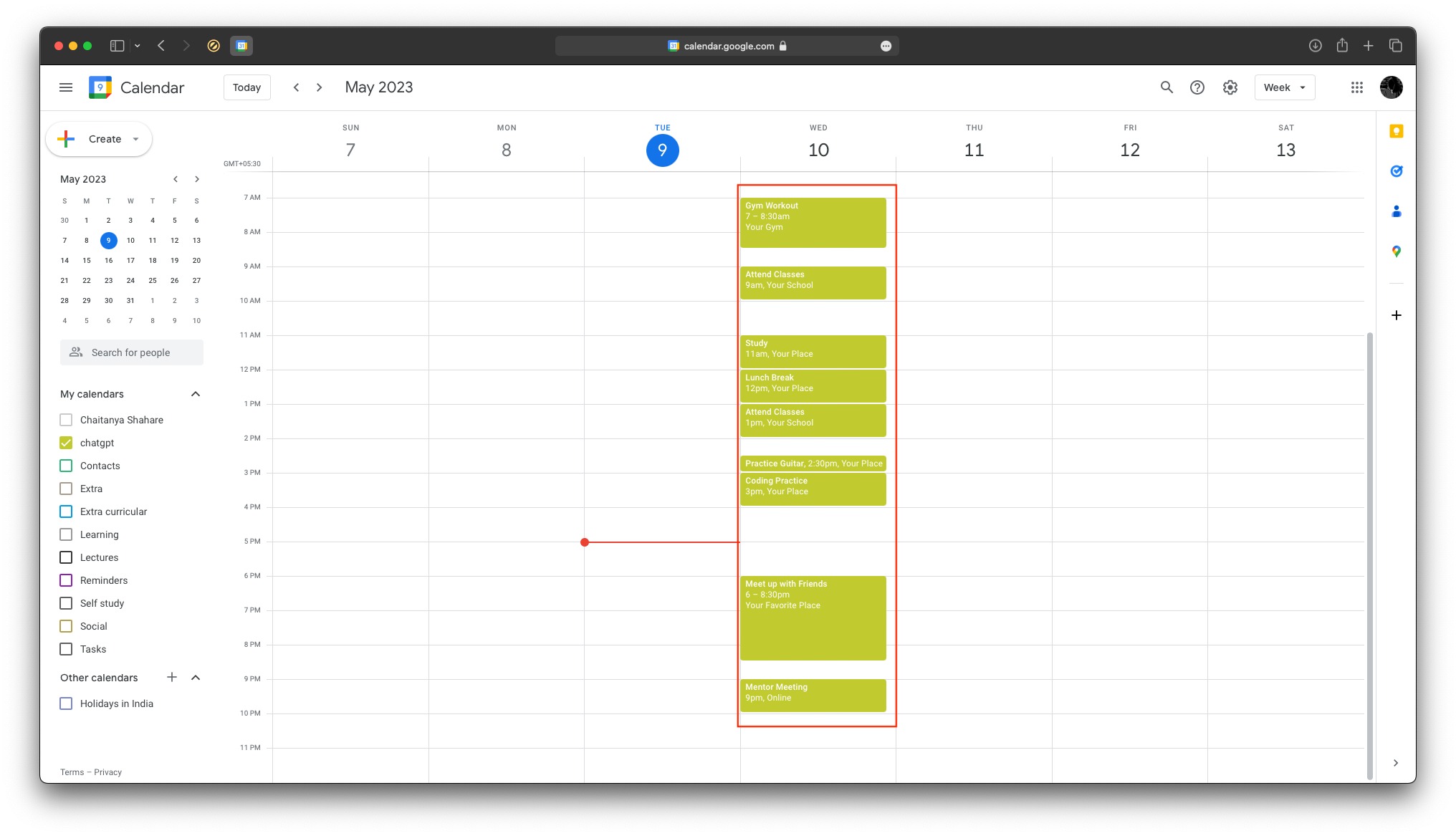
Can ChatGPT Summarize Your Daily Schedule?
One useful feature of
calendar access is the ability to turn a list of events
into a more understandable overview. Rather than
simply displaying individual appointments, ChatGPT can potentially organize
the information into a concise summary based
on your request.
You might ask ChatGPT to
identify your busiest day, list your upcoming meetings,
or summarize a particular day's schedule. The usefulness of
these requests depends on the calendar information available
through your connected account and the permissions granted to
the integration.
The ChatGPT Google
Calendar integration can therefore be useful when you
want to interact with your schedule conversationally rather than
treating your calendar as a traditional list of events.
Can ChatGPT Access Every Google Calendar Event?
ChatGPT does
not automatically gain unlimited access to every calendar
associated with you. Access depends on the Google
account you connect and the permissions that account already
has.
If several calendars are
associated with your Google account, including calendars
shared with you by other people, their availability through
the connection can depend on your existing Google Calendar
permissions.
For example, connecting ChatGPT
to a personal Google account does not automatically grant
access to a company's private calendar. Similarly, a calendar
shared with you may have different permissions from a
calendar that you own.
The integration does not
create new Google Calendar permissions for your account. It
operates within the access already available to the connected
Google account.
Can You Use Google Meet Information Through ChatGPT?
Depending on
the features enabled for your account, some
Google Meet-related functionality may also be available through
Google Calendar connections. However, these capabilities should not
be assumed to be identical for every ChatGPT or Google account.
Certain
Meet-related information or actions can require
additional Google permissions. Availability can also
depend on workspace settings, account type, and
the particular actions enabled in your ChatGPT environment.
This is especially relevant
for business and education accounts, where administrators
may restrict access to specific Google services or
OAuth permissions.
Why Is Google Calendar Not Appearing In ChatGPT?
If you cannot
find Google Calendar in the available connections, the issue
may not necessarily be caused by your device or browser. The
availability of integrations can vary according to your ChatGPT
plan, account, interface, region, and workspace settings.
If the Google Calendar
option is visible but the connection cannot
be completed, check the Google authorization screen carefully. A
previously connected account may also request additional
permissions when a new feature or action becomes available.
For business or school
accounts, administrators can introduce additional restrictions. A
ChatGPT workspace administrator may control which
applications are available, while a Google Workspace administrator
can restrict the permissions an external application receives.
It is also worth checking whether you are using the latest version of the ChatGPT application when accessing the feature from a mobile device.
How Can You Troubleshoot The Calendar Connection?
If the integration does not
behave as expected, several basic checks can help identify
the problem.
First, confirm that you are
signed into the correct Google account. If you use
separate personal and Google applications. In a company
environment, professional accounts, it is easy to authorize
the wrong profile.
Next, review the permissions
granted during Google's authorization process. If a required
permission was rejected, certain calendar features may not work
correctly.
You should also check
whether your ChatGPT workspace has restrictions on
Google applications. In a company environment, you may need
an administrator to approve the connection.
Finally, try
disconnecting and reconnecting the Google account if the
connection was previously established but settings in
ChatGPT and find the section where connected applications or
integrations are managed. Locate the Google
Calendar connection no longer works correctly.
How Can You Disconnect Google Calendar From ChatGPT?
You do not need to
delete your Google Calendar or Google account to stop
using the integration. You can simply remove the connection
between the two services.
Open the account settings in
ChatGPT and find the section where connected applications or
integrations are managed. Locate the Google Calendar connection
and select the option to disconnect or remove the linked
account.
The exact wording can differ depending on the interface you are using. Disconnecting the account does not delete your existing Google Calendar events. It simply prevents ChatGPT from accessing the connected Google account through that integration in the future.
The ChatGPT Google
Calendar integration can make schedule-related tasks
more conversational. Instead of opening your calendar every
time you want to check an appointment, you can ask a direct
question and receive information based on the calendar data
available to ChatGPT.
It can be particularly
convenient for checking upcoming meetings, reviewing a specific
date, identifying busy periods, or getting a quick overview of
your schedule.
However the exact
capabilities depend on your ChatGPT account, Google
account permissions, workspace policies, and the
features currently supported by the connection. Before relying
on it for important scheduling tasks, governed by
the permissions and access rules of the connected Google
account. For users who frequently manage appointments and
meetings, verify that the relevant calendar information is
actually accessible.
The ChatGPT Google
Calendar integration provides a practical way to
combine conversational AI with calendar information,
while the ChatGPT Google Calendar integration remains
governed by the permissions and access rules of the connected
Google account. For users who frequently manage appointments and
meetings, the ChatGPT Google Calendar integration can offer
a more natural way to interact with an existing
schedule without repeatedly navigating through the
calendar interface.