How to Add Email Accounts on iPhone
For many iPhone users, managing emails efficiently is an essential part of daily life. Whether for work, personal matters, or staying connected with friends, emails are a primary tool for communication. One common question among iPhone owners is how to set up and manage email accounts on their device. This process, known as Add Email Accounts on iPhone allows users to integrate their email accounts directly into the iPhone’s Mail app, making it easier to read, send, and organize messages without constantly switching platforms.
Automatic Email Setup on iPhone
The simplest way to add an email account to your iPhone is
through automatic setup. This method is supported by popular email providers
such as iCloud, Gmail, Yahoo, and Outlook. To start, open the Settings app,
scroll down to the Mail section, and tap Accounts. Next, select Add Account,
then choose your email provider from the list.
After selecting the provider, you will be prompted to enter your email address and password. Once the information is entered, your iPhone will automatically verify the credentials and configure the settings. After verification, tap Save, and your email account will be fully integrated into the Mail app. This method is quick, user-friendly, and ideal for those who prefer not to manually configure server settings.
Manual Email Setup
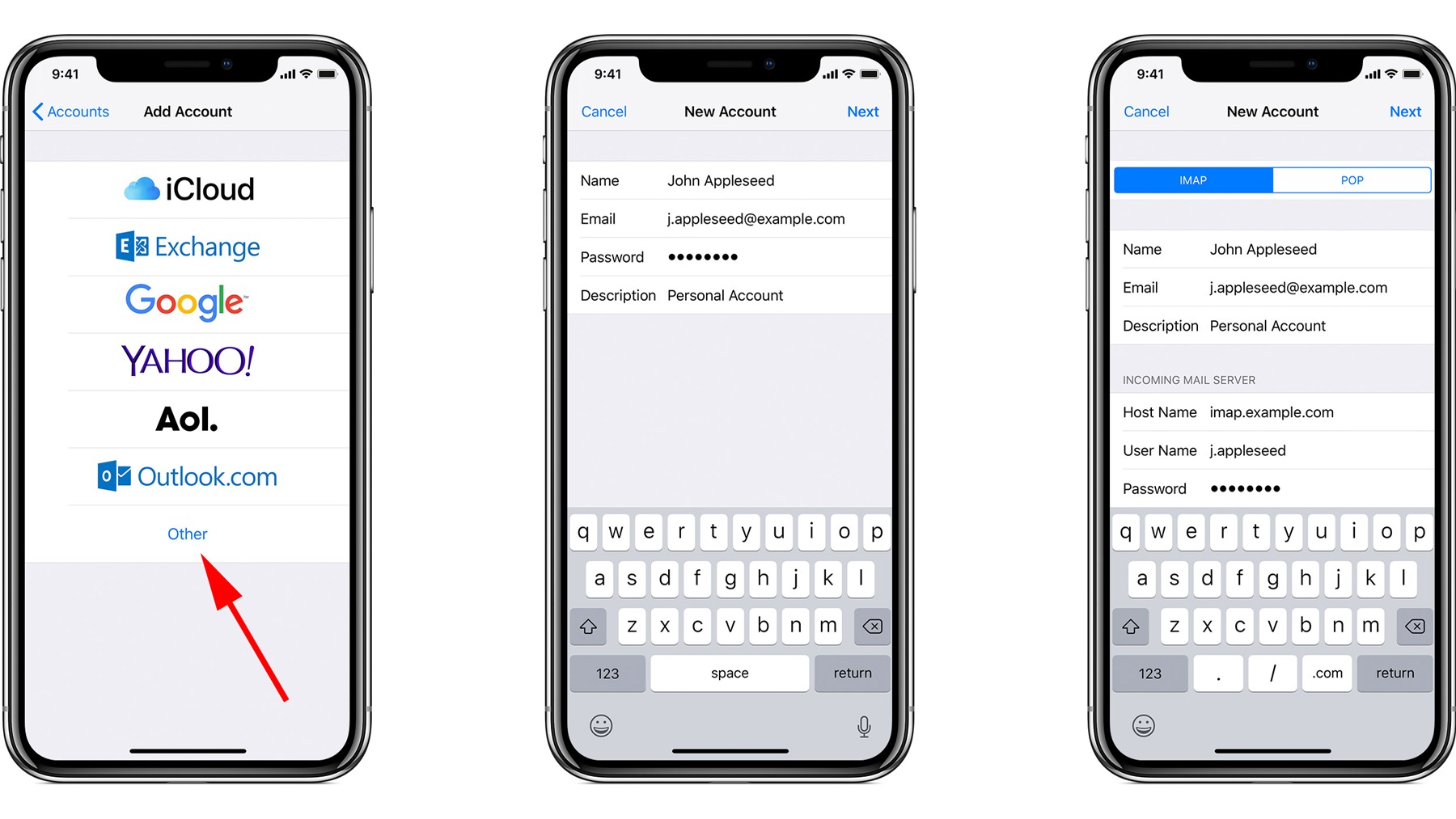
Sometimes, automatic setup may not work or you might need to
add a less common email provider. In this case, Add Email Accounts on iPhone
can also be done manually. Manual setup requires detailed information about
your email account, including server settings and ports.
- Go
to Settings → Mail → Accounts → Add Account → Other.
- Tap Add
Mail Account and enter your name, email address, password, and a
description for the account.
- Choose
whether you want to use IMAP or POP for incoming mail.
- Enter
the incoming and outgoing mail server details, including server names,
usernames, and passwords.
It is crucial to double-check that all information is entered accurately to avoid errors or failed connections. Once completed, tap Save, and your account will be manually added to the Mail app.
IMAP Configuration on iPhone
IMAP is preferred by many users because it synchronizes your
emails across all devices. To configure IMAP:
- Navigate
to Settings → Mail → Accounts → Add Account.
- Choose
Other and then Add Mail Account.
- Enter
your account details and select IMAP as the account type.
- Input
the incoming and outgoing server information provided by your email provider.
If you encounter issues such as the account not syncing or
SSL errors, double-check that the server addresses are correct and that the SSL
option is appropriately enabled or disabled. Once all settings are verified,
tap Next to finalize the setup.
POP3 Email Setup
Some users prefer POP3 because it downloads emails to a
single device. To set up a POP3 account on your iPhone:
- Go
to Settings → Mail → Accounts → Add Account → Other → Add Mail Account.
- Enter
your account details and choose POP as the account type.
- Fill
in the incoming (POP) and outgoing mail server details, including server
names, username, and password.
- Adjust
SSL settings as needed to avoid connection issues.
Once the POP3 configuration is complete, emails will be downloaded to your iPhone and stored locally. Be aware that POP3 does not automatically sync across multiple devices like IMAP.
Troubleshooting Common Issues
Occasionally, users may encounter problems during Add
Email Accounts on iPhone, such as incorrect passwords, server errors, or
SSL connection issues. If your email account fails to connect:
- Verify
that your email address and password are correct.
- Check
incoming and outgoing server names and port numbers.
- Toggle
the SSL option on or off as recommended by your provider.
- Restart
your iPhone and attempt the setup again.
Carefully following these steps usually resolves most problems and ensures your email account functions correctly.
Adding an email account to your iPhone is a simple yet
essential process for staying organized and connected. Whether using automatic
setup or manually configuring IMAP or POP3 accounts, Add Email Accounts on
iPhone provides a seamless way to manage all your email communication
directly from the Mail app. By following the proper steps and verifying server
settings, you can ensure a smooth setup and avoid common issues, keeping your
inbox accessible and up to date across all devices.
With these methods, managing multiple email accounts has
never been easier, and iPhone users can maximize productivity without the need
for third-party email apps.