How to Loop a YouTube Video on Any Device?
Have you ever wanted to listen to your favorite song repeatedly or watch the same tutorial without manually restarting it every time? YouTube offers a built-in looping feature that makes this possible. Once enabled, the video automatically starts playing again when it reaches the end, allowing you to enjoy the same content without interruption.
YouTube looping is useful
for music lovers, students, fitness enthusiasts, and anyone who wants to replay
a particular video continuously. Whether you are using a computer, smartphone,
tablet, or smart TV, you can usually enable repeat playback directly through
YouTube's playback controls.
How Can You Loop a YouTube Video on a Computer?
On a desktop or laptop, repeating
a YouTube video is straightforward. You do not need to change your account
settings, install browser extensions, or download additional software. The
option is available directly in the video player's context menu.
Follow these steps to repeat a
video on your computer:
- Open YouTube in your preferred web browser.
- Find and play the video you want to repeat.
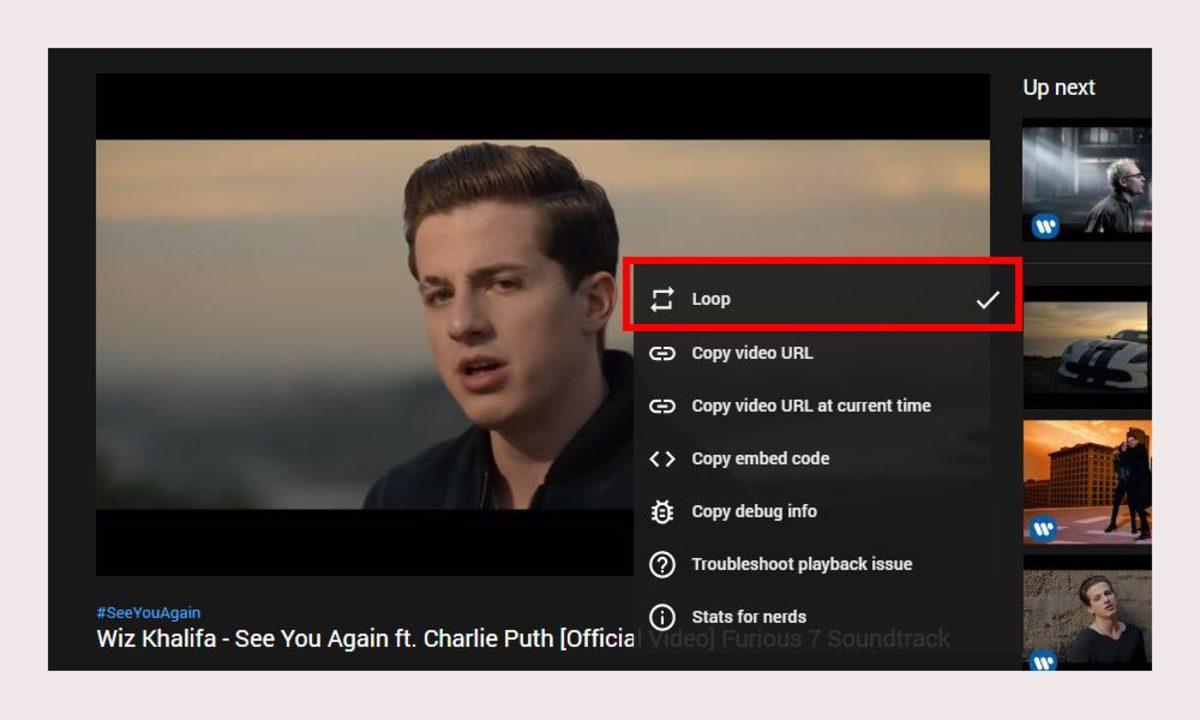
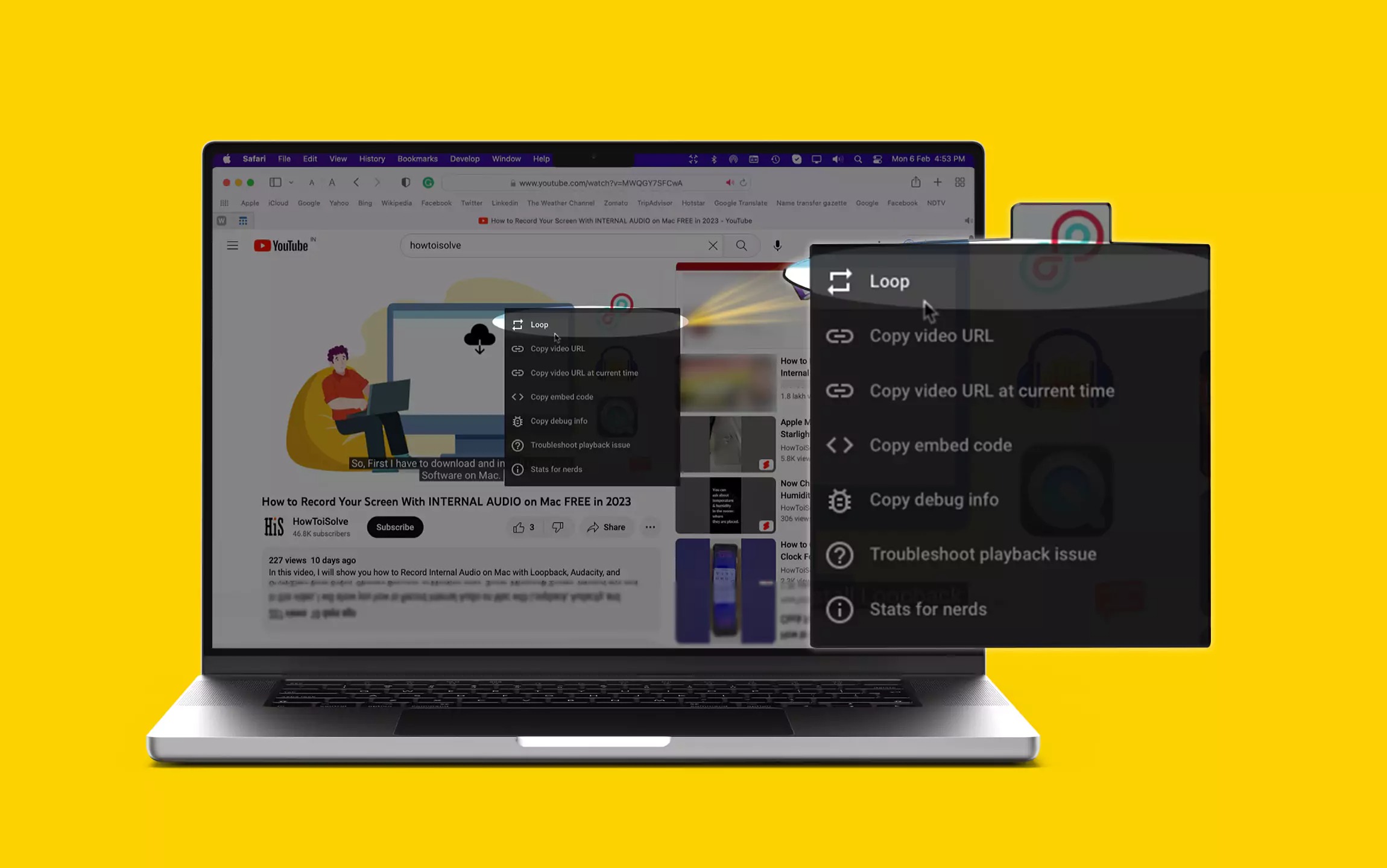
- Right-click anywhere inside the video player.
- Select the Loop option from the menu.
- Let the video play until it reaches the end.
Once looping is enabled, the
video automatically returns to the beginning and starts playing again. You can
leave it running while studying, working, exercising, or listening to music.
To disable the feature,
right-click the video player again and select Loop to turn it off. The video
will then stop repeating continuously.
One important distinction is that looping works differently from autoplay. Autoplay generally moves to another recommended video when the current one finishes, whereas looping restarts the same video. If you want to listen to one particular song repeatedly, the Loop option is the one you need.
How Do You Enable YouTube Looping on a Phone?
On smartphones and tablets, the
process is slightly different because there is no traditional right-click menu.
Instead, YouTube provides the repeat option through its playback settings.
To activate YouTube looping
on a mobile device, follow these steps:
- Open the YouTube app on your Android phone, iPhone,
or tablet.
- Select the video you want to watch repeatedly.
- Tap the video player to display the playback
controls.
- Open the Settings menu, usually represented by a
gear icon.
- Look for the Additional settings section.
- Select the Loop video option to enable continuous
playback.
After activating the setting, the
video will restart automatically whenever playback reaches the end. You can
continue using the app normally while the selected video repeats.
The exact menu labels and
locations may vary depending on your YouTube app version and device. If you
cannot immediately find the option, check the additional playback settings.
To stop the video from repeating,
return to the same menu and disable Loop video.
When Is Looping a YouTube Video Useful?
The repeat feature can make
everyday activities more convenient. Instead of repeatedly searching for a
video or dragging the playback bar back to the beginning, you can let YouTube
handle the process automatically.
Here are some common situations
where looping can be helpful:
- Listening to music: Repeat your favorite song while
working, relaxing, or studying.
- Learning a new skill: Replay a tutorial to
understand a difficult technique or instruction.
- Practicing languages: Listen to the same
pronunciation example multiple times.
- Exercising: Keep a workout demonstration or
motivational video playing continuously.
- Creating background ambience: Repeat rain sounds,
nature recordings, or relaxing music.
- Reviewing educational content: Watch a short
explanation repeatedly until you understand it.
For short videos, looping can save considerable time. However, remember that the feature repeats the entire video. If you only want to replay a particular section, you may need to move the playback position manually or use another suitable playback method.
How Can You Loop an Entire YouTube Playlist?
YouTube also allows users to
repeat playlists rather than individual videos. This is particularly useful
when listening to a collection of songs, following a workout routine, or
playing a series of educational videos.
When playlist looping is enabled,
YouTube returns to the first video after the final item finishes.
To repeat a playlist, follow
these steps:
- Open the YouTube playlist you want to play.
- Start playing a video from that playlist.
- Locate the playlist controls in the playback
interface.
- Select the Loop playlist icon.
- Allow the playlist to finish and confirm that
playback returns to the beginning.
The playlist will continue
playing in a cycle until you disable the repeat setting.
On mobile devices, the controls
may appear in a different position depending on the app version. Look for the
repeat icon within the playlist playback interface.
This method is ideal for longer
music collections because you do not need to restart the playlist manually
after the last song ends.
What Is the Difference Between Looping a Video and a Playlist?
Although the two options are
related, they serve different purposes. Single-video looping repeats one
specific video, while playlist looping repeats all the videos in a selected
list.
YouTube's playlist interface may
also offer a repeat mode that focuses on the currently playing video. Depending
on the interface, selecting the repeat icon again can change the mode so that
only the current video repeats. An indicator containing the number 1 may appear
on the repeat icon when this mode is active.
For example, if your playlist
contains ten songs, normal playlist looping plays all ten before starting
again. Single-video repeat keeps playing the selected song without moving to
the next one.
Understanding this distinction
helps you choose the correct setting for your listening habits.
How Do You Repeat YouTube Videos on a Smart TV?
YouTube is also available on
smart TVs and supported streaming devices. Although the interface differs from
the desktop and mobile versions, some versions provide repeat controls through
the playback menu.
To look for the feature, start
playing the video and use your remote control to display the player options.
Open the available settings and check for a Repeat or Loop option.
If you are watching a playlist,
look for a repeat control in the playlist interface. The available options may
depend on your television's operating system, device model, and installed
YouTube app version.
Not every TV interface offers
identical controls. If the repeat option is unavailable, check whether your
device's YouTube app has received the latest update.
Why Is YouTube Looping Not Working?
If a video does not repeat as
expected, first check whether the Loop option is enabled. On a computer,
right-click the video and inspect the setting. On mobile, reopen the playback
settings and verify that Loop video is active.
You can also try these
troubleshooting steps:
- Restart the YouTube app or refresh the browser
page.
- Update the YouTube app if a newer version is
available.
- Check whether you enabled playlist repeat instead
of single-video repeat.
- Test another video to determine whether the problem
affects all content.
- Review the playback controls again after restarting
the video.
If the interface has changed
following an update, the option may have moved to a different menu.
Is YouTube Looping Worth Using?
YouTube looping is a
simple but practical feature that removes the need to restart videos manually.
It works particularly well for repeated music playback, language practice,
educational tutorials, and ambient sound videos.
The best method depends on your
device and what you want to repeat. Use the video player's Loop option on a
computer, check the playback settings on your phone, and explore the available
repeat controls on your television.
Whether you want to replay one
song or keep an entire playlist running, YouTube's built-in controls can make
continuous playback easier. Once you know where the setting is located, you can
enjoy your favorite content repeatedly with just a few clicks or taps.